
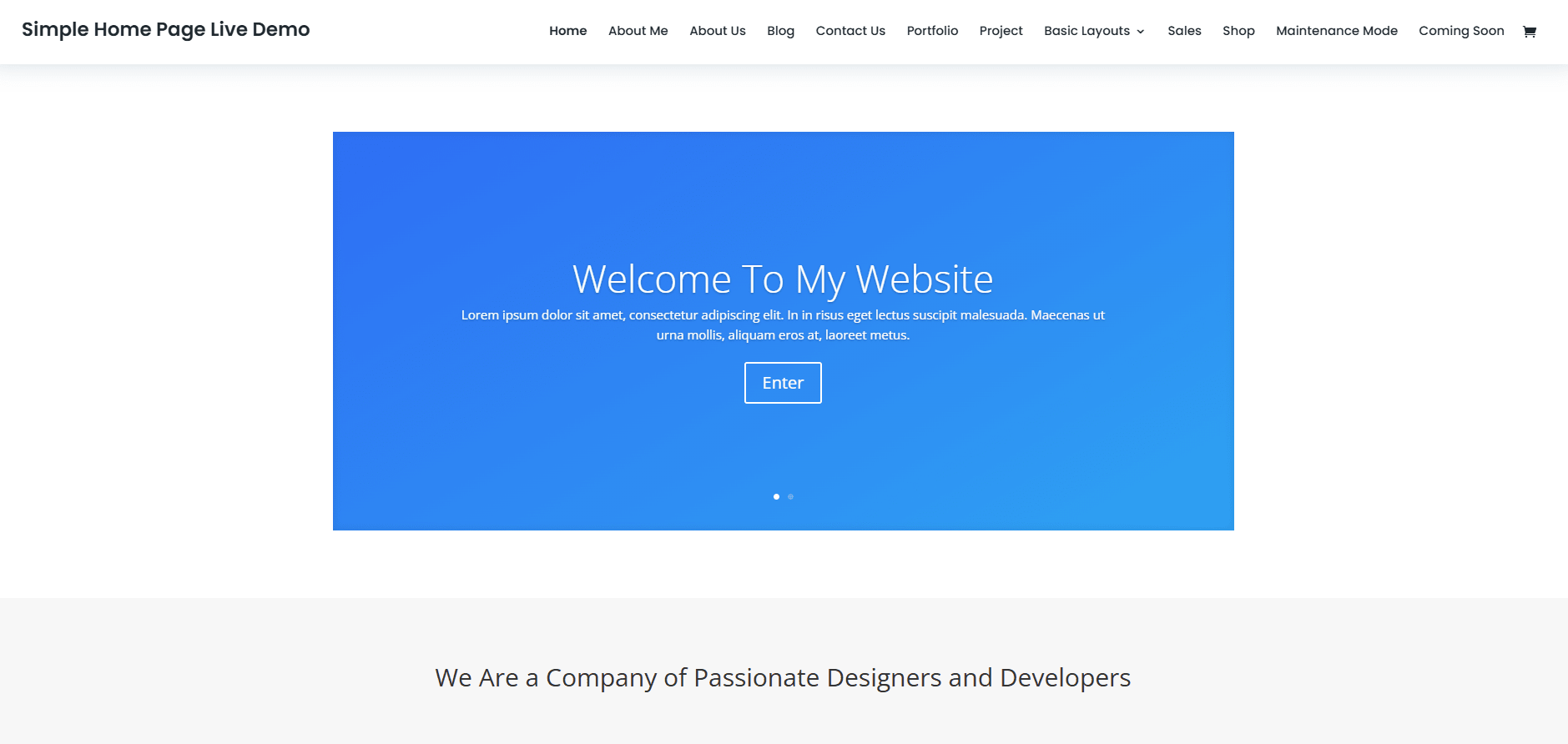
Divi by Elegant Themes is a powerful drag-and-drop WordPress theme and page builder designed for users of all skill levels. This tutorial will guide you through the essentials of making basic edits — perfect for business owners, bloggers, or clients managing their own sites.

What You’ll Learn
- How to access and launch the Divi Builder
- Editing text and images
- Updating buttons and links
- Saving and publishing changes safely
Step 1: Log in to WordPress & Launch Divi Builder
- Go to your login page: yourdomain.com/wp-admin
- Enter your login credentials
- Navigate to Pages > All Pages
- Hover over the page you want to edit and click “Edit with Divi”
You’ll now be taken to the Visual Builder interface.
Step 2: Edit Text on the Page
- Click directly on the text block you want to change
- You can edit inline — just like in a Word doc!
- Adjust headings, paragraphs, and formatting
- Use the floating toolbar to style your text (bold, italic, color, etc.)
- Click the green checkmark to save the module
Tip: Keep text styling consistent across the site by using global styles.

Step 3: Replace or Add an Image
- Hover over the image and click the gear icon to edit the module
- In the settings popup:
- Click the image thumbnail to select or upload a new image
- Use Alt Text for SEO and accessibility
- Click the green checkmark to save
Step 4: Edit a Button or Link
- Click on the button module’s settings
- Update the Button Text (e.g., “Get Started”, “Contact Us”)
- Under the Link tab, enter your desired URL
- You can also customize the button’s color, size, and hover effects under Design
Step 5: Save and Publish Your Changes
- Once all edits are done, click the purple circle at the bottom center of the screen
- Hit the green “Save” button
- Exit the builder and preview your live site
You can also use “Save as Draft” or “Save Layout” for reuse.
Best Practices
- Always preview your page before saving changes
- Don’t delete rows or sections unless you’re sure
- Use the Undo/Redo arrows in the bottom bar if needed
- Keep images optimized for fast loading
You’re Done!
Editing in Divi is intuitive once you get the hang of it. Whether you’re updating blog content, replacing images, or tweaking buttons, Divi gives you full control — visually.