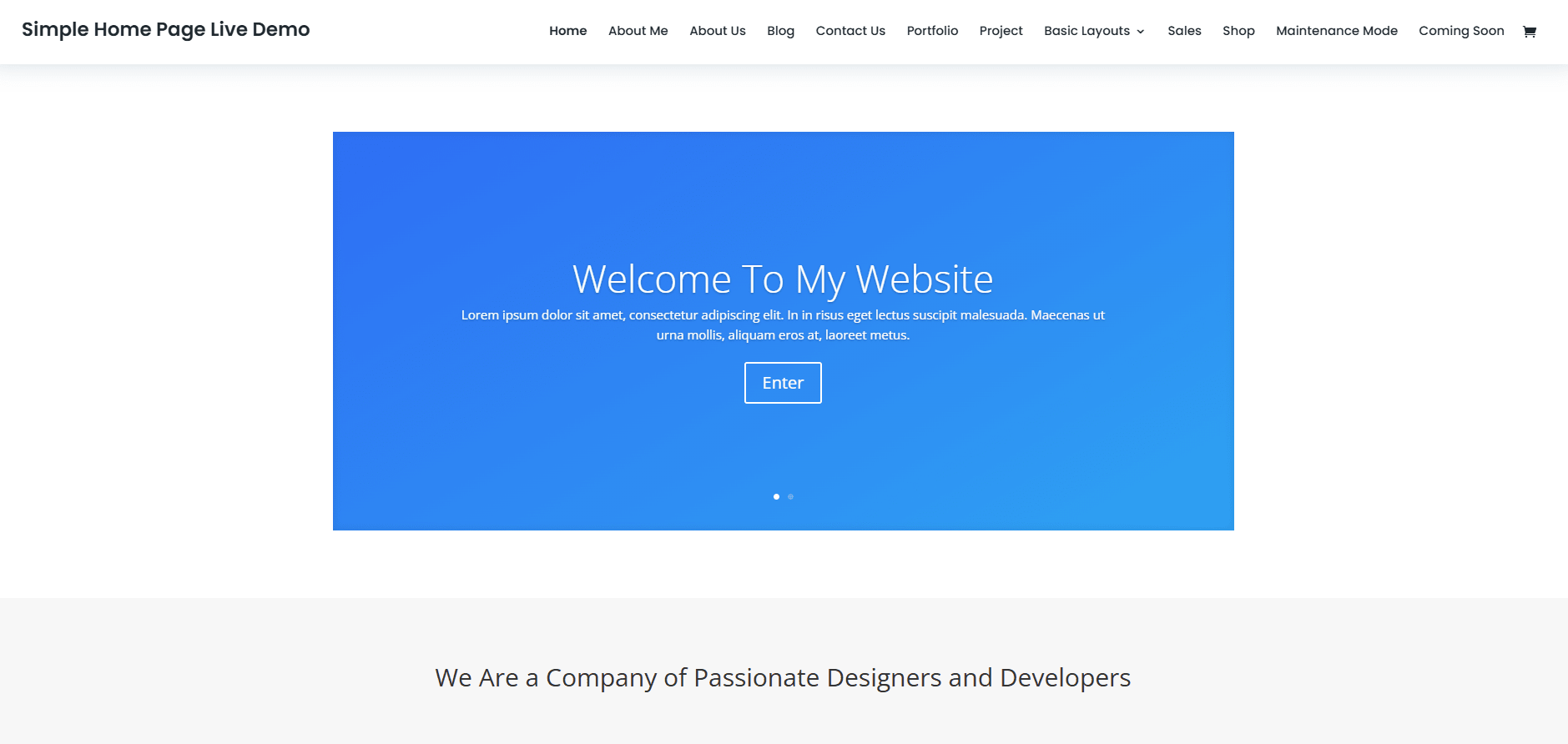

Avada is a powerful and flexible WordPress theme that includes the Fusion Builder (now called Avada Builder) — a visual drag-and-drop editor for building and editing website pages. In this guide, I’ll walk you through basic editing steps to help clients or new users confidently make simple updates to their websites.

What You’ll Learn
- How to access a page in Avada
- Editing text, images, and buttons
- Saving and updating changes
- Best practices to avoid breaking your layout
Step 1: Log in to WordPress & Navigate to Your Page
- Go to your website’s login page (yourdomain.com/wp-admin)
- Enter your Username and Password
- Once logged in, go to Pages > All Pages
- Hover over the page you want to edit and click “Edit with Avada Builder”
Step 2: Edit Text Content
- Hover over any text block and click the pen/edit icon
- A text editor will pop up — you can now:
- Change headings or body text
- Apply bold, italic, or links
- Click Save when you’re done
- You’ll still need to Update the page to apply changes live
Tip: Use consistent formatting (H1 for page titles, H2 for sections) for better SEO and structure.

Step 3: Change or Replace an Image
- Hover over the image element and click the edit icon
- In the Image options, click “Select Image”
- Choose from the Media Library or upload a new image
- Add Alt Text for accessibility and SEO
- Click Insert into Page, then Save
Step 4: Edit a Button or Link
- Click on the button element’s edit icon
- In the popup, you can:
- Change the button text (e.g., “Learn More”)
- Update the URL it links to
- Adjust styling (color, size) if needed
- Click Save
Step 5: Save & Update the Page
Once you’ve made all your edits:
- Click “Update” in the top-right of the WordPress editor
- Wait for the update confirmation
- View your live site to confirm everything looks right
Best Practices
- Always preview your changes before publishing
- Don’t delete containers or columns unless you’re sure
- Keep image sizes optimized (under 200KB if possible)
- Use Undo (top bar) if you make a mistake
That’s It!
You’ve just made basic edits to a website using the Avada Builder. It’s a beginner-friendly way to manage content without needing to code, and with a bit of practice, you’ll be able to create and update full pages with ease.